
Transfer phonebook contacts: your foolproof guide
Android, iPhone, Microsoft, you name it. We've got you covered!
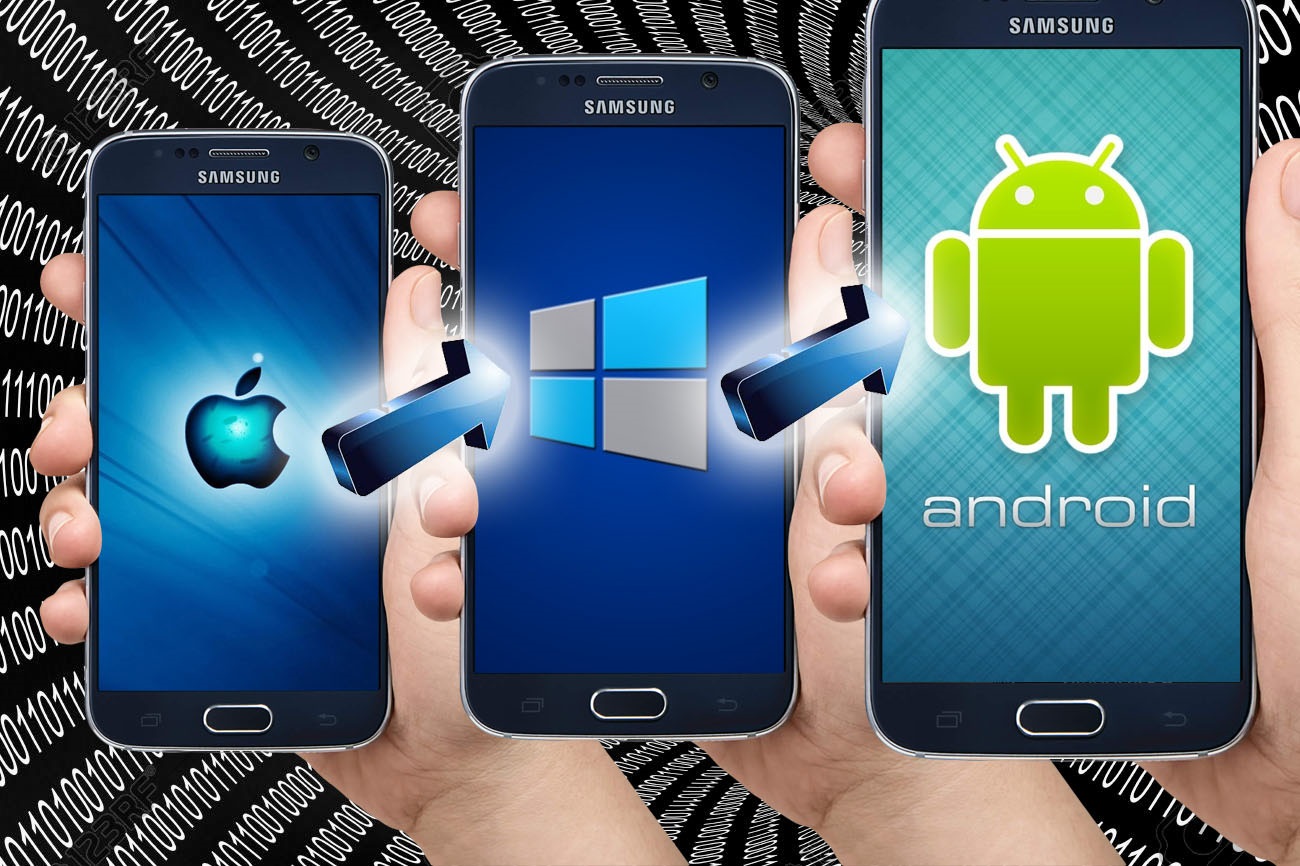
As much as getting a brand-new cellphone is something to be excited about, the admin that comes with it is a pain. Cellphone users all over complain that their contact lists get lost when they switch cellphones. Yet help seems to be a few quick steps away.
Faced with a myriad of applications for the backup and transfer of contact lists, users may feel overwhelmed. Yet it is simpler than you think.
Firstly, you will have to copy your old phone’s contact list onto a storage platform. This can be a “cloud” platform such as OneDrive or Dropbox. For the purposes of this feature, G-mail will be used as a storage and contact updating platform. Many Lowvelders are subscribed to this free email-account service.
Your method will depend on the handset you are transferring the contacts from.
If you are transferring from an Android cellphone:

Step one: Log into your G-mail account – click here for easy access.
Step two: Click on “G-mail” in the top left corner and then on “contacts.”
Step three: Your username will appear in the top left corner. Under it, clock on “more.”
Step four: Click on “export.”
Step five: Click on “go to old contacts”.
Step six: At the top of the screen in the middle, click on “more” and the on “export…”

Step seven: Choose your exporting format. You can export your contact list for transfer to a Google, Apple or Outlook inbox. Save the file, which will have a “.csv” at the end.

Step eight:

G-mail users can import the file with their contacts onto their Google accounts. The same is possible with Apple or Outlook accounts.
How?
In the “contacts” section of your Google account, for example. Click on “import” and select “.csv or vcard file”.
If you are transferring from a Microsoft cellphone:

Step one: Visit Microsoft Live’s People section
Step two: Log in with the Microsoft account log in details you used on your cellphone. Windows phones back up on OneDrive. To access your contacts in the required format, your Outlook.com account needs to be activated. Once logged in with your Outlook details, you will be able to access OneDrive. Back up the contents on your phone using this platform. Access your Microsoft account on a PC and export your contacts as a .csv file. Save the file on your computer.
Step three: Import the .csv file onto your computer as explained above.
If you are transferring from an Apple device:

Step one: Your device can back-up contacts with iCloud. See to it that your phone’s contact backup setting is enabled.
Step two: Visit iCloud.com.
Step three: Click on the “contacts” icon and the gear icon in the bottom left corner of your screen. Select “export vCard,” which will cause all your contacts to be saved in a .vcf file. Save the .vcf file.
Step four: Import the .vcf file onto your storage platform account as explained above.
If you are not subscribed to iCloud, you can also use iTunes. Plug your iPhone into your PC. A notice will pop up with your cellphone’s name. Click on it. Open the Info tab, then select “Sync Contacts with.” Choose “Google Contacts” or whichever platform you want to export to.
To export your saved contacts:
On an iPhone

Scroll to the “Apps and Data” screen and elect where you want to import your contacts from.
Watch: Man caught stealing laptop in school library
Also read: R25 000 reward after local man dies